Accounts
Requesting accounts
Before you use GSDC’s TEM cluster, you should send an application form to TEM service manager by e-mail and get an user account to access the computing cluster (please see APPENDIX : Application Form & Materials section). If you already have valid user accounts, you can make a connection to UI (user interface) login servers to use various kind of cluster computing/storage resources and software environments (including data analysis tools, e.g., relion, cisTEM, CryoSPARC, etc.).
Note
When you first connect to the login servers, you can connect using only your password (or initial password), but you MUST immediately receive OTP (One-Time-Password)s for two-factor authentication. After the sucessful login, at ssh terminal, please follow the OTP guide to enable it. Two-factor Authentication (2FA) with One-Time-Password (OTP)
Accessing GSDC TEM cluster
For Linux/Mac users
$> ssh -Y -o Port=<port> <userID>@tem-ui-el7.sdfarm.kr
(<userID>@tem-ui-el7.sdfarm.kr) First Factor:
(<userID>@tem-ui-el7.sdfarm.kr) Second Factor(optional):
or,
$> ssh -Y -o Port=<port> <userID>@tem-cs-el7.sdfarm.kr
(<userID>@tem-cs-el7.sdfarm.kr) First Factor:
(<userID>@tem-cs-el7.sdfarm.kr) Second Factor(optional):
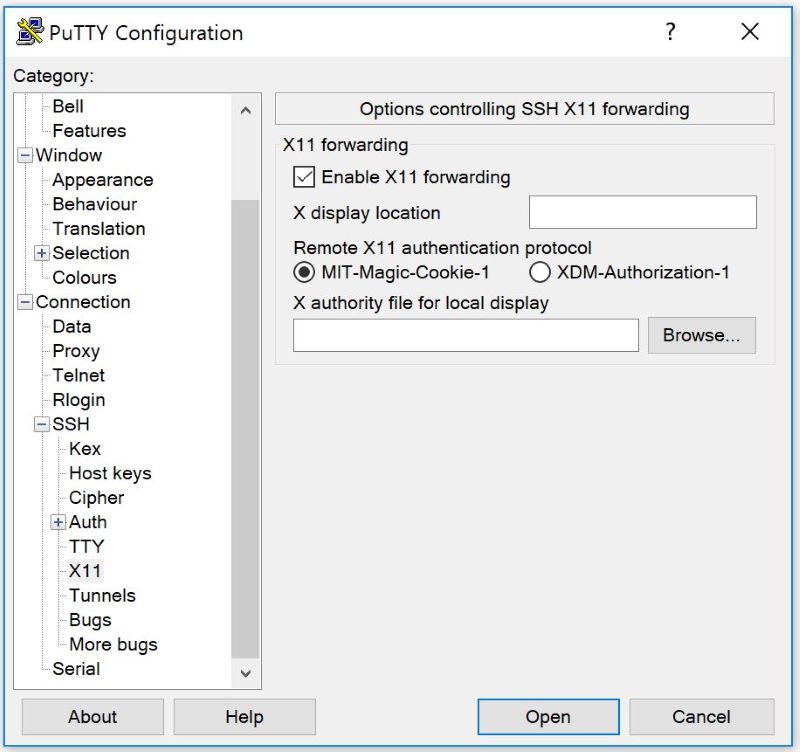
-Y (or -X) options : enable trusted X11 (or untrusted X11) forwarding
For Windows users
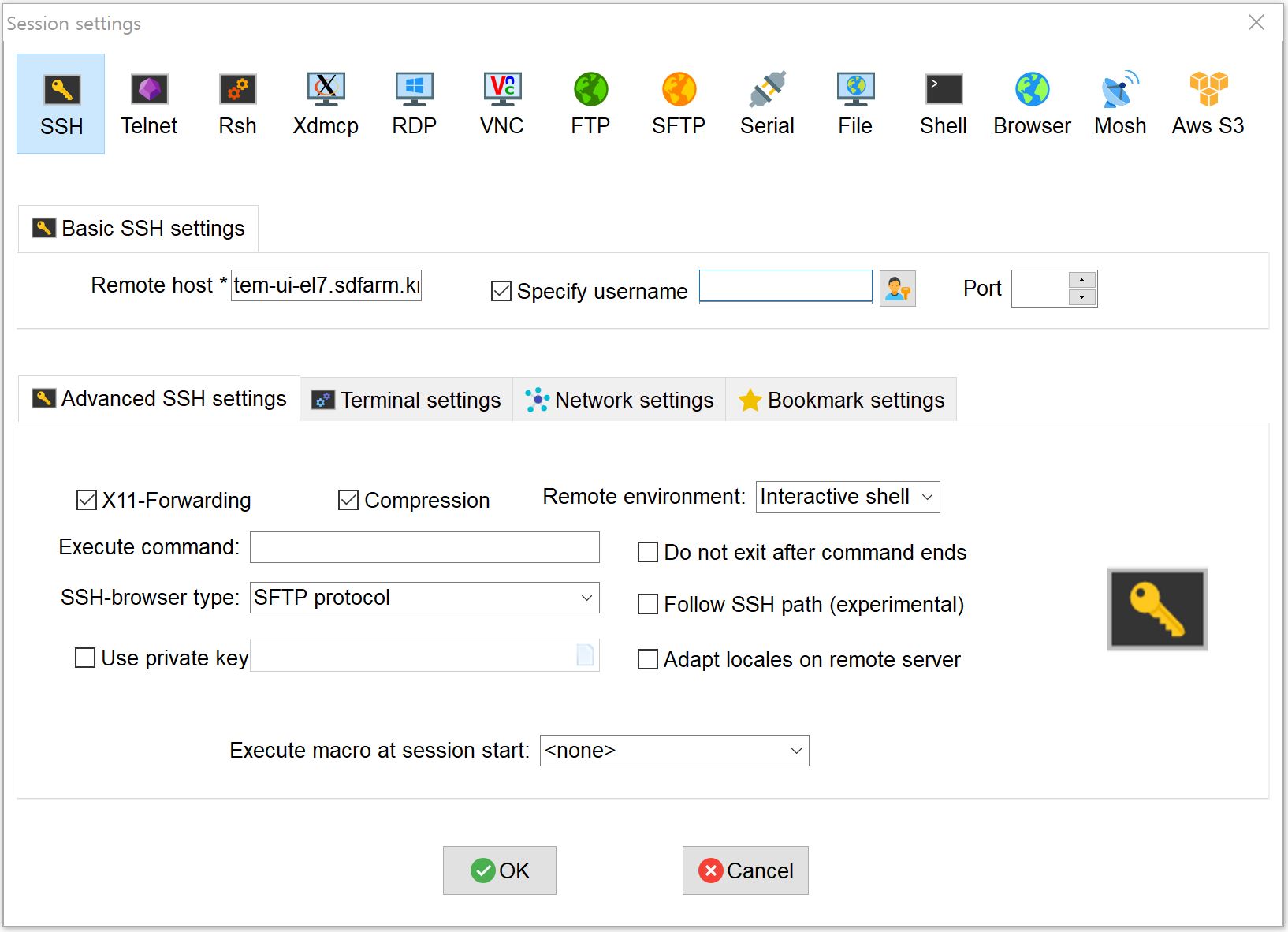
Using MobaXterm (https://mobaxterm.mobatek.net) : MobaXterm is an enhanced terminal for Windows with self-contained X11 server, tabbed SSH client, network tools and much more.
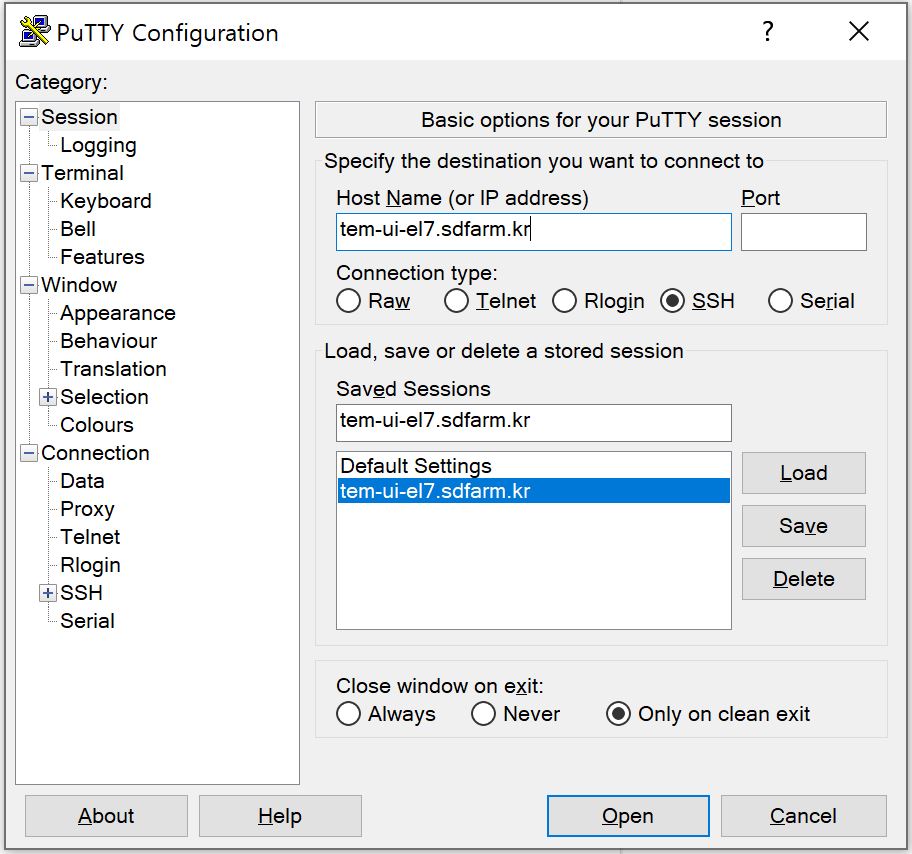
Using Putty with Xwindows manager (e.g., Xming, Xmanager, etc.) (https://www.putty.org) : If you use putty terminal application, you must install a 3rd-party Xwindows manager in advance.