Data Transfers
How can I use SSH/SFTP programs with 2FA?
Your client (e.g., Terminal-based ssh/sftp/scp/rsync commands on Linux/Mac etc.) programs may natively support interactive or multi-factor authentication methods.
GUI terminal programs (for Linux or Mac) : SSH/SFTP/SCP/RSYNC via terminal-based commands
However, many GUI programs do not have this functionality built in.
Known GUI applications for SSH that support 2FA natively:
MobaXterm (for Windows only) : SSH via MobaXterm
XShell (for Windows only) : SSH using Xshell
Putty
Known GUI applications for SFTP that support 2FA natively:
FileZilla (for Windows or Linux/Mac) : see How can I use FileZilla with 2FA?
WinSCP (for Windows only) : see How can I use WinSCP with 2FA?
How can I use FileZilla with 2FA?
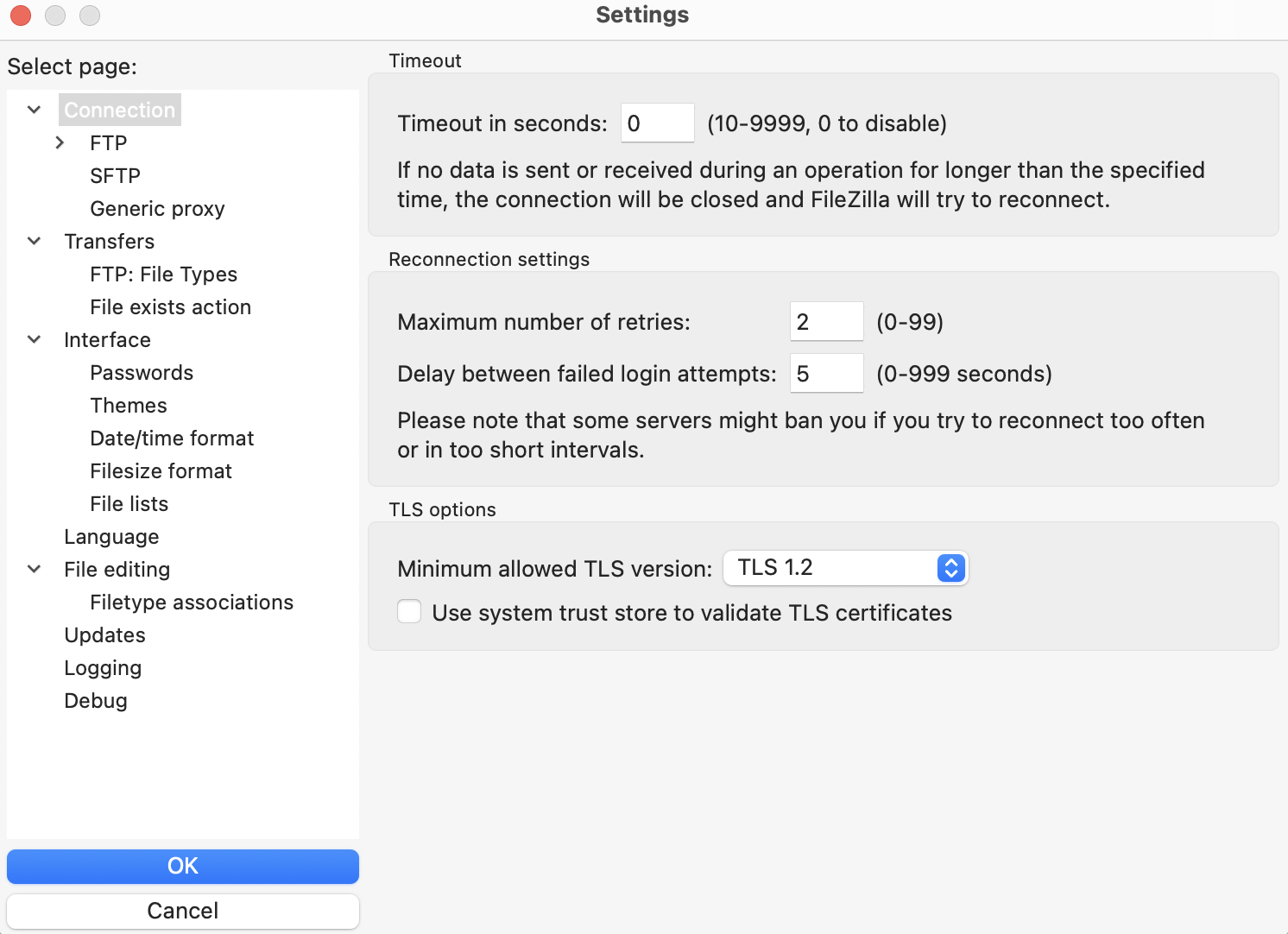
With the FileZilla global settings (“Edit” -> “Setttings”),
In “Connection” menu, make sure to set “Timeout in seconds” value to 0, it will not close and recreate idle sessions.
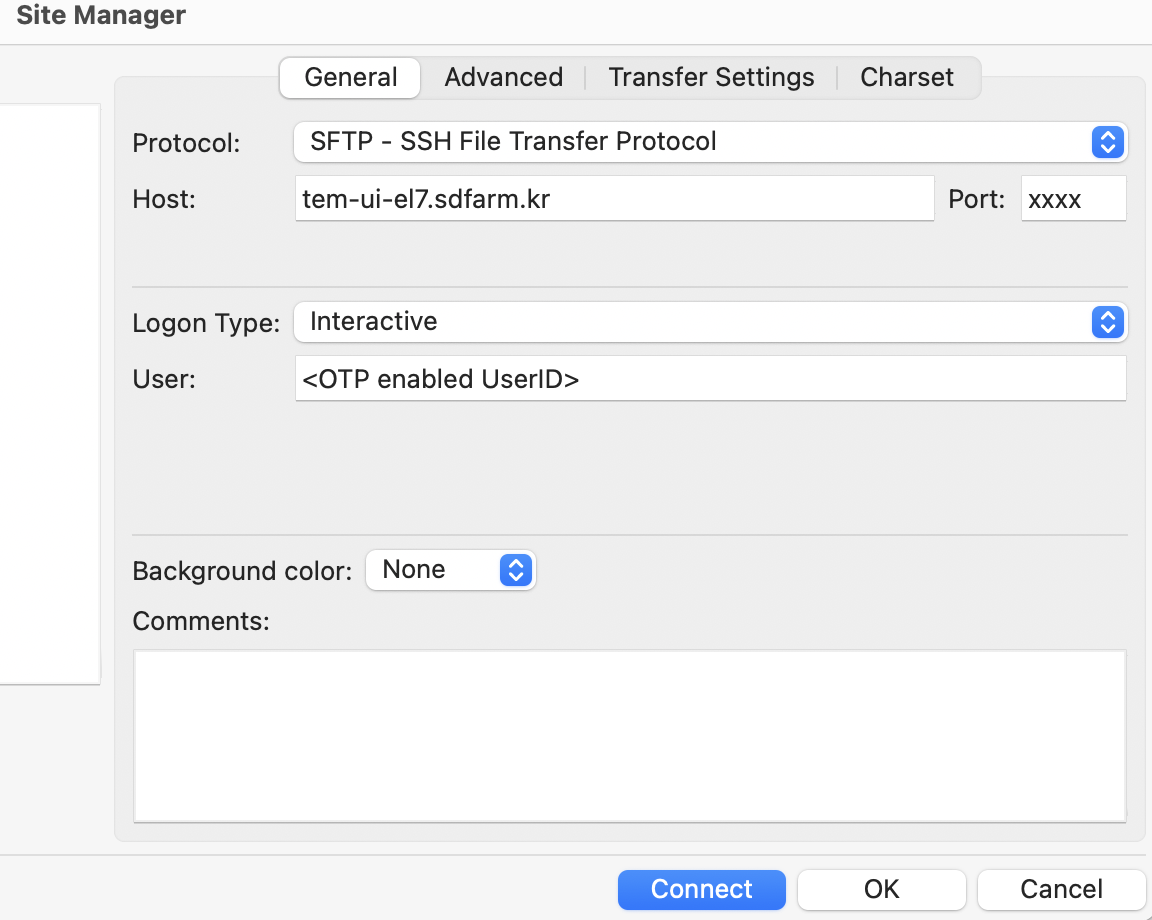
When editing and connecting a new site for SFTP (“File” -> “Site Manager” -> “New site”),
In “General” tab, choose the Logon Type “interactive”, and with this setting, it will ask you for your password and OTP.
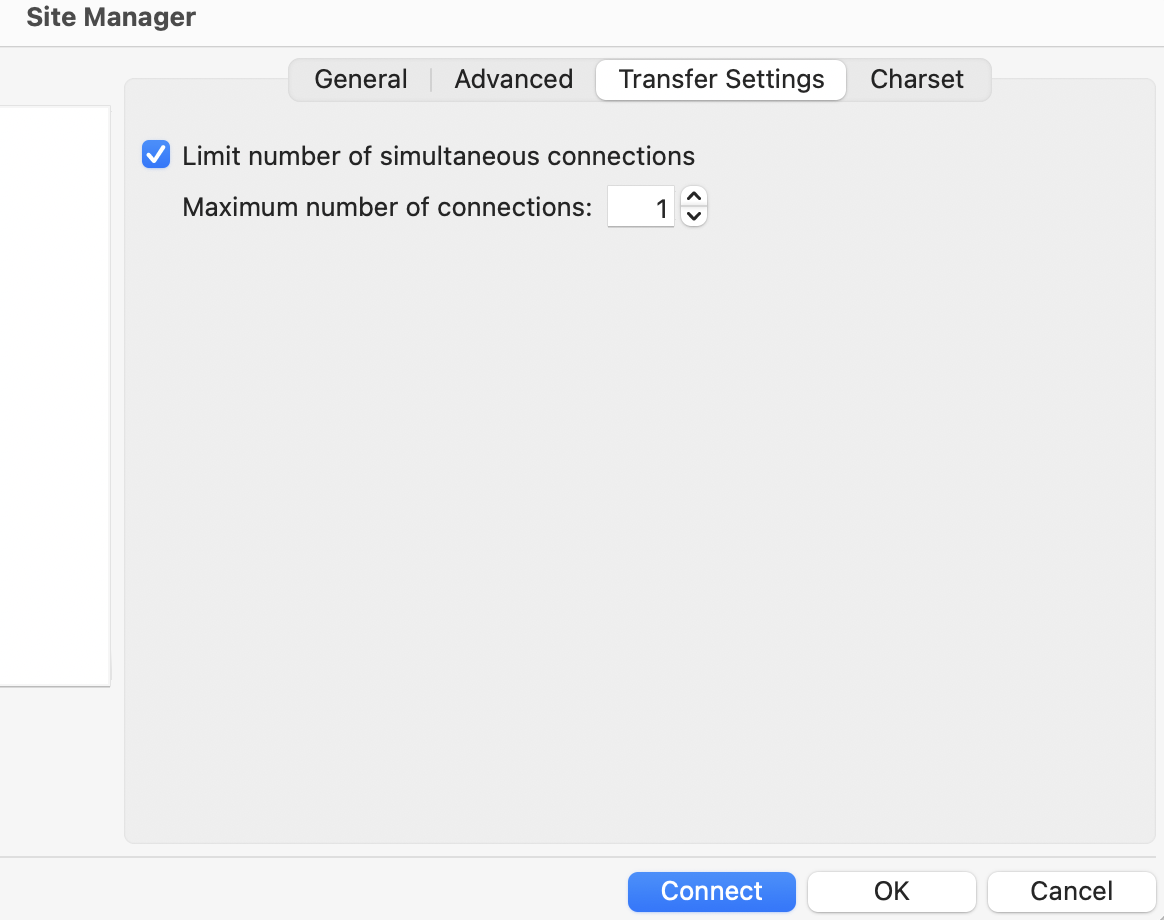
In “Transfer Settings” tab, also make sure to check “Limit number of simultaneous connections” and leave the default value of 1.
How can I use WinSCP with 2FA?
Download and install the WinSCP from https://winscp.net/eng/downloads.php. Check out the WinSCP installation guide for more detailed info: https://winscp.net/eng/docs/guide_install.
Run the WinSCP.exe which you installed in step 1
Click “Tabs” -> “Sites” -> “Site Manager”
Click on “Advanced…” button on the login window
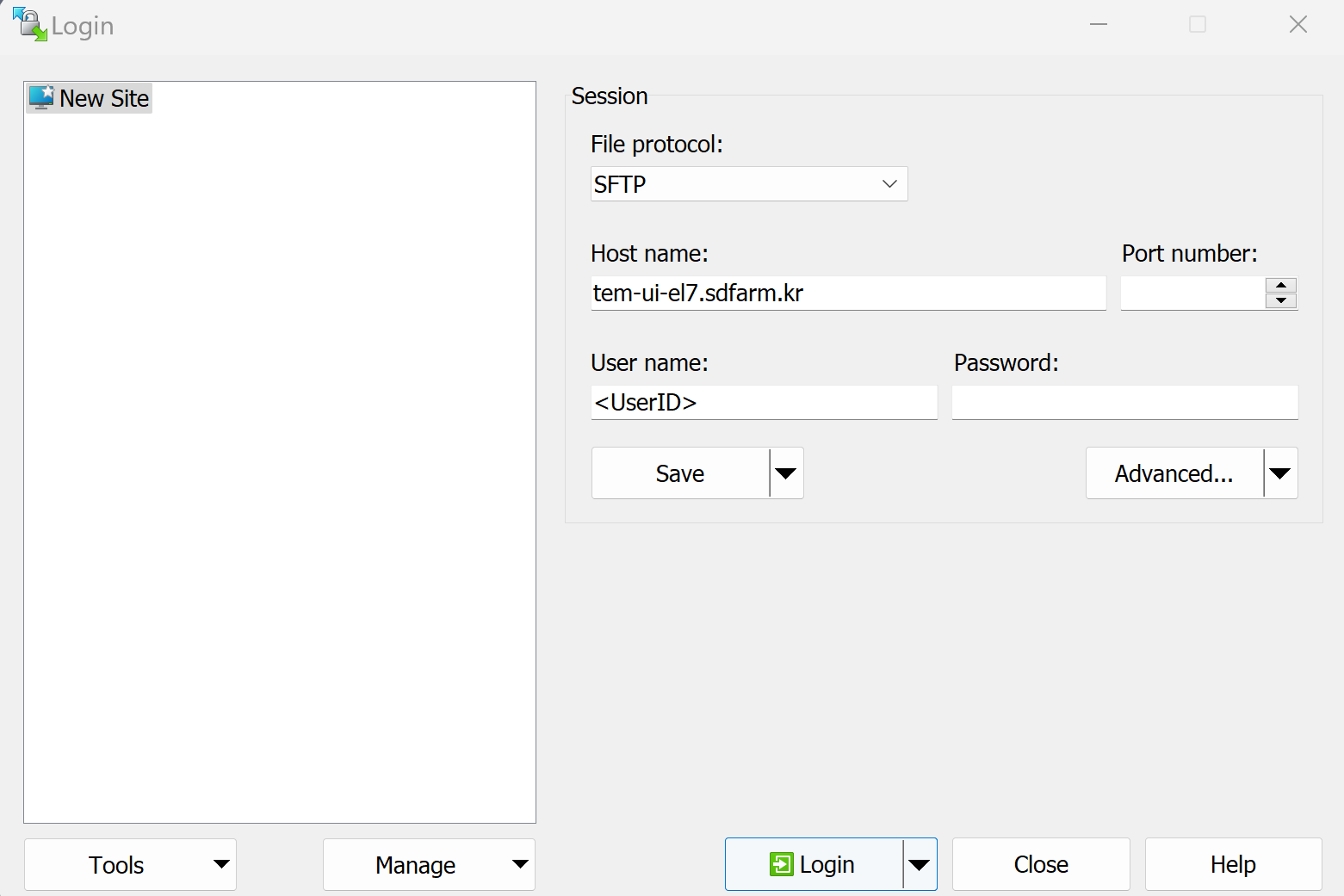
Go to the SSH -> Authentication, check all the options in “Authentication options”
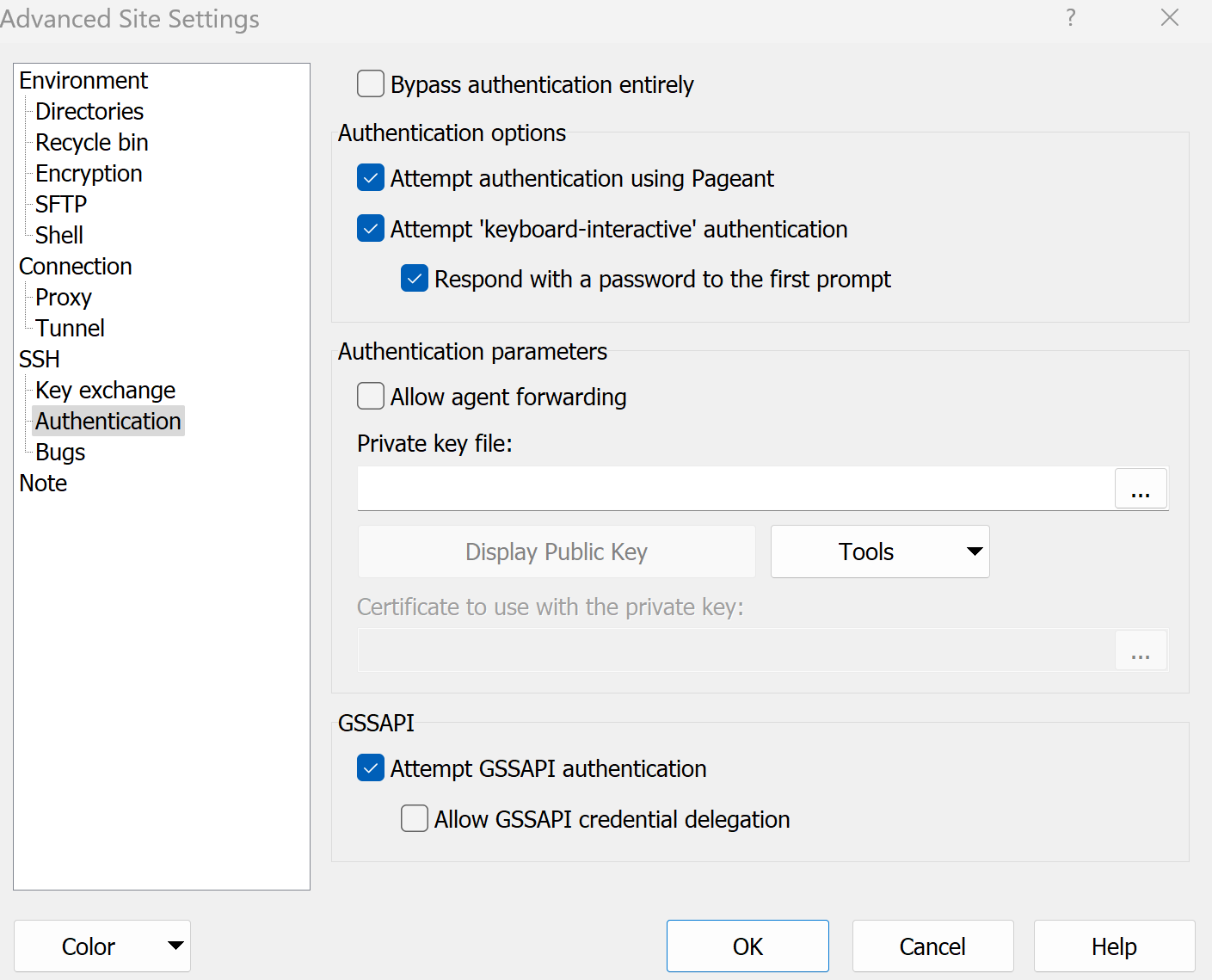
6. Back in the login window, enter the hostname (tem-ui-el7.sdfarm.kr or tem-cs-el7.sdfarm.kr), port number and <UserID>. Note to leave the blank in “Password”. Click “Save” button and choose a name for this session configuration in the “Site name” field, and click OK.
7. Back in the login window, choose this site and click on the “Login” buttion. You will be connected to the login server. If this is the first time you are connecting to the server, the server’s host key information will be shown. Click “Yes” to proceed.
You will be asked for your password and 2FA (OTP) code for connecting to the login server.
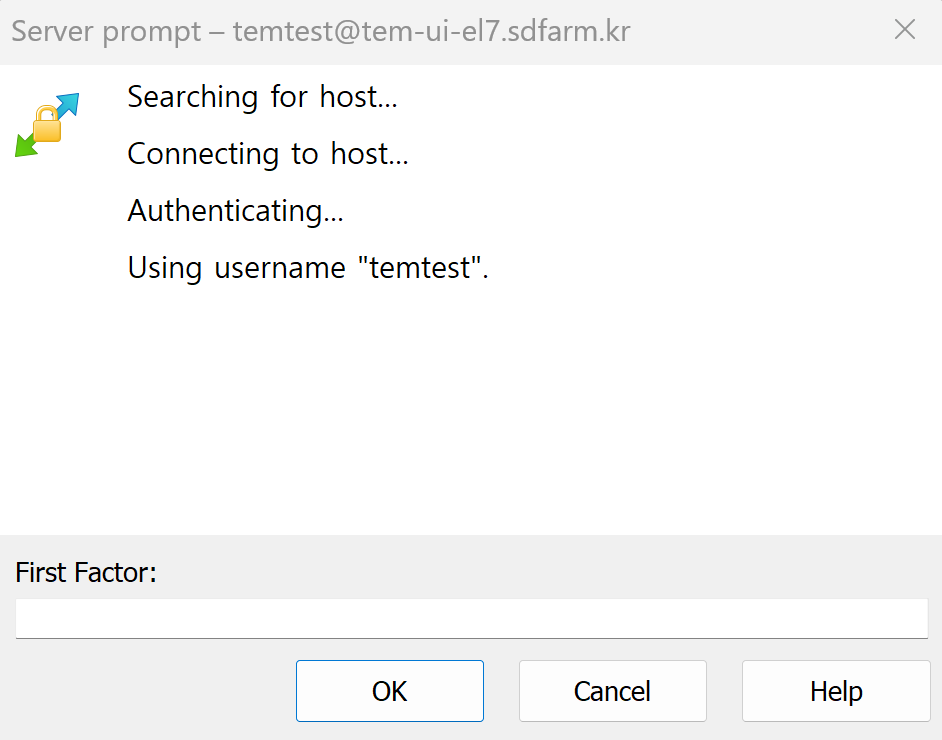
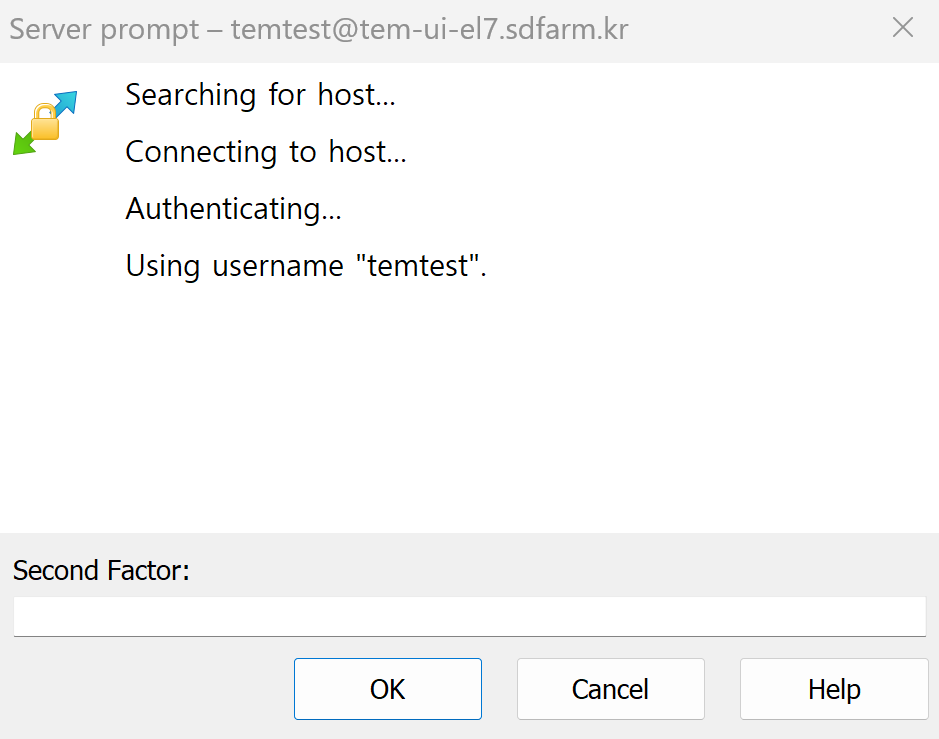
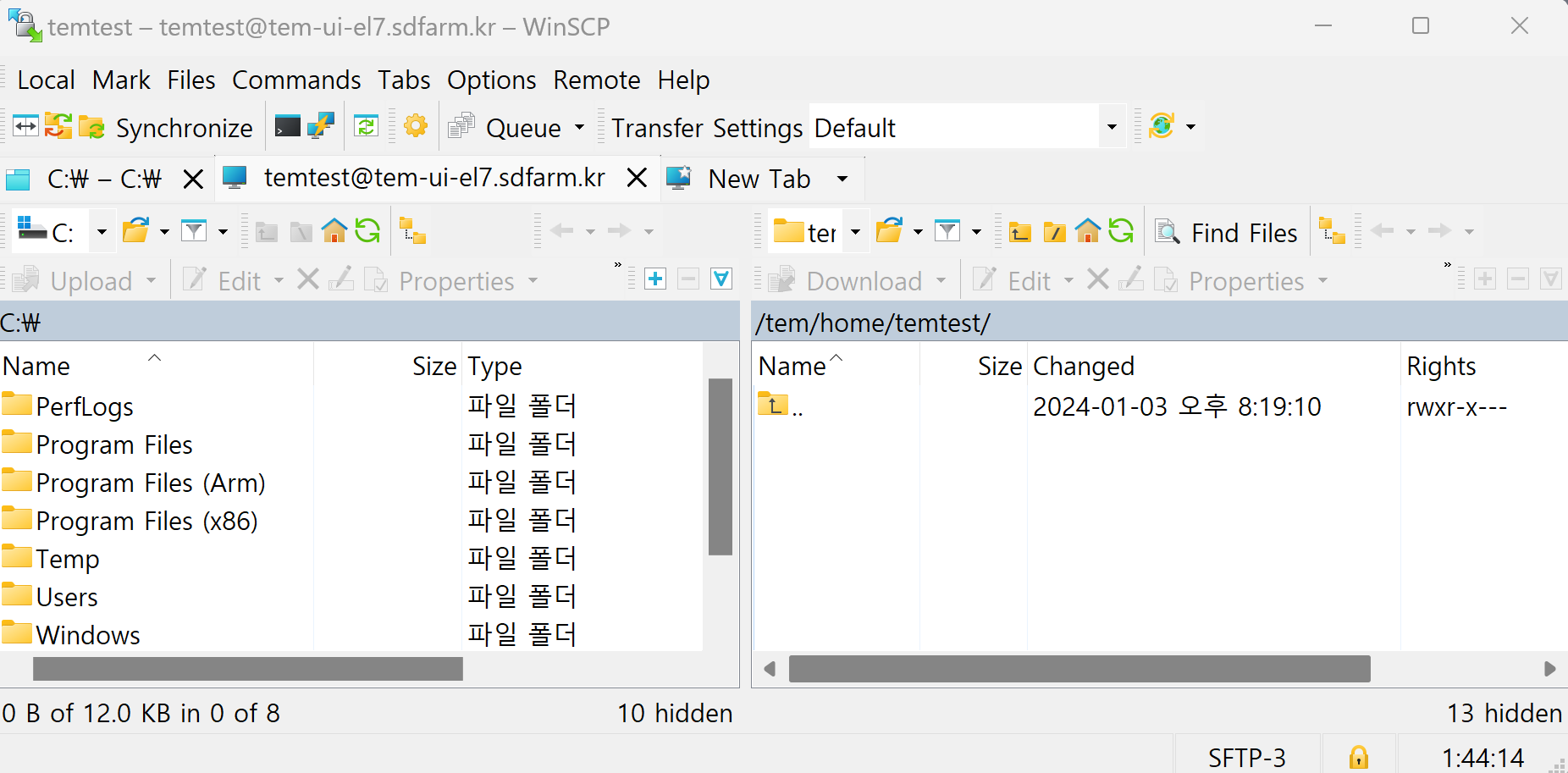
9. Finally, in the main window you will see the files on the TEM cluster in the right panel, and the files on your computer in the left one. You can drag and drop files to copy them from the cluster to your computer and vice versa.