SSH Login
Enabling OTP
When connecting first to the login servers, you can log-in using only your password (or initial password), but you MUST immediately receive OTP (One-Time-Password)s for two-factor authentication. After the sucessful login, at ssh terminal, please follow the GSDC OTP GUIDE to enable it.
Linux/Mac Users
On the Linux/Mac environment, users can execute the built-in ssh command in order to connect and access GSDC TEM login servers.
Note
- line 1:
-Y (-X)means enabling trused (or untrusted) X11 forwarding.portis designated port number informed by administrator. - line 2:
First Factormeans your own password string. - line 3:
Second Factormeans six digits OTP code. You can input justenterif you have not enabled OTP yet.
Windows Users
MobaXterm
- Download and install MobaXterm
- MobaXterm is an enhanced terminal for Windows with self-contained X11 server, SSH client, network tools and much more.
- After executing MobaXterm, click
Sessions - On
Session settingsdialog, selectSSH
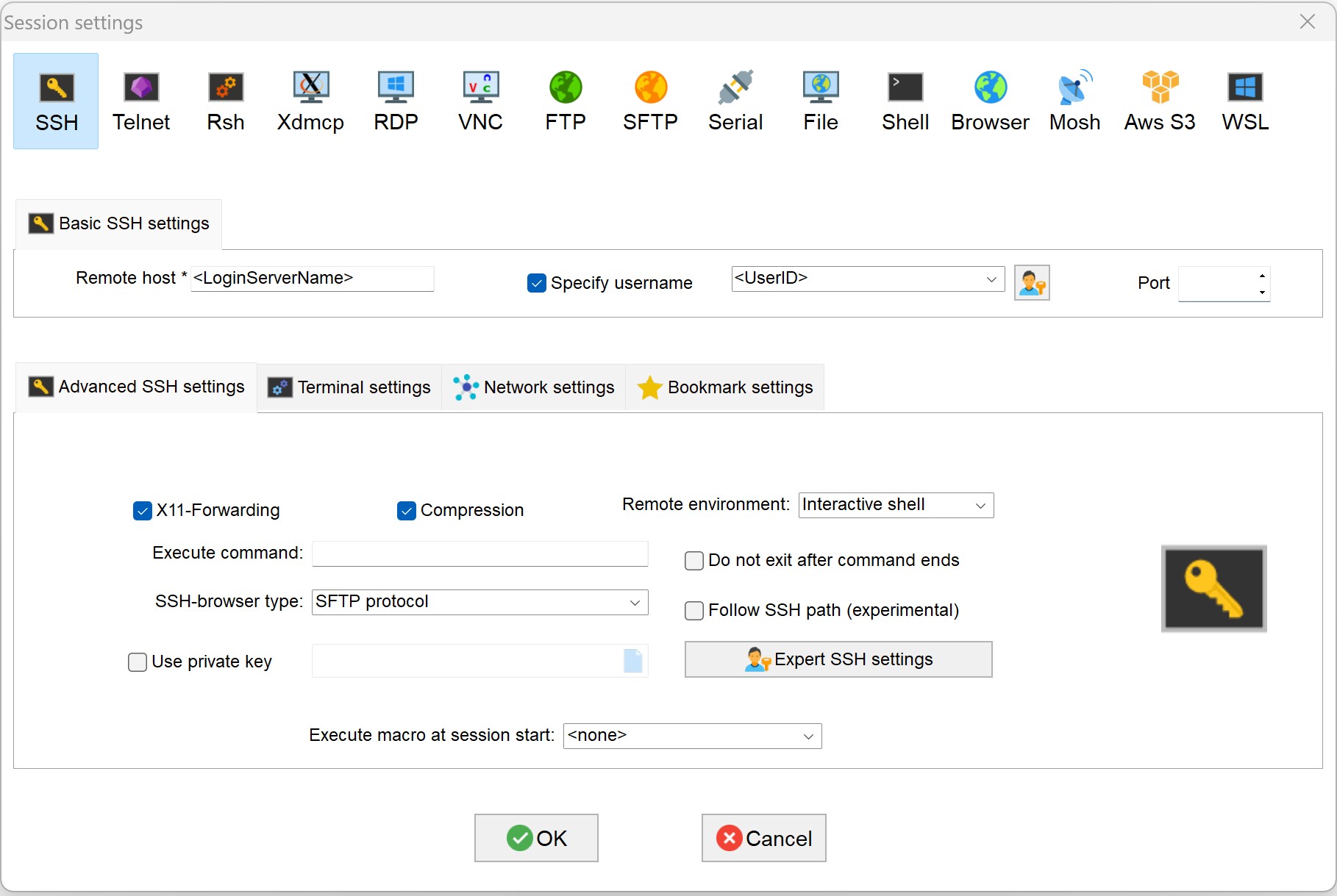
- Enter
tem-ui-al9.sdfarm.krortem-cs-al9.sdfarm.krasRemote host. - Check
Specify username, enter your account and a designatedPortnumber. - On the dialog, select
Advanced SSH settingstab: checkX11-ForwardingandCompression, and also interactive shell asRemote environment. - Click OK button and proceed the login procedure, i.e., authentication using the first and second factors)
Putty
- Download and install Putty
Info
To use X11-forwarding (controlling X11 GUI application running on the server-side over the SSH network channel), Putty requires a 3rd-party XWindows manager (e.g., Xming, Xmanager, etc.) installed in advance on the client workstation.
- After executing Putty, on the
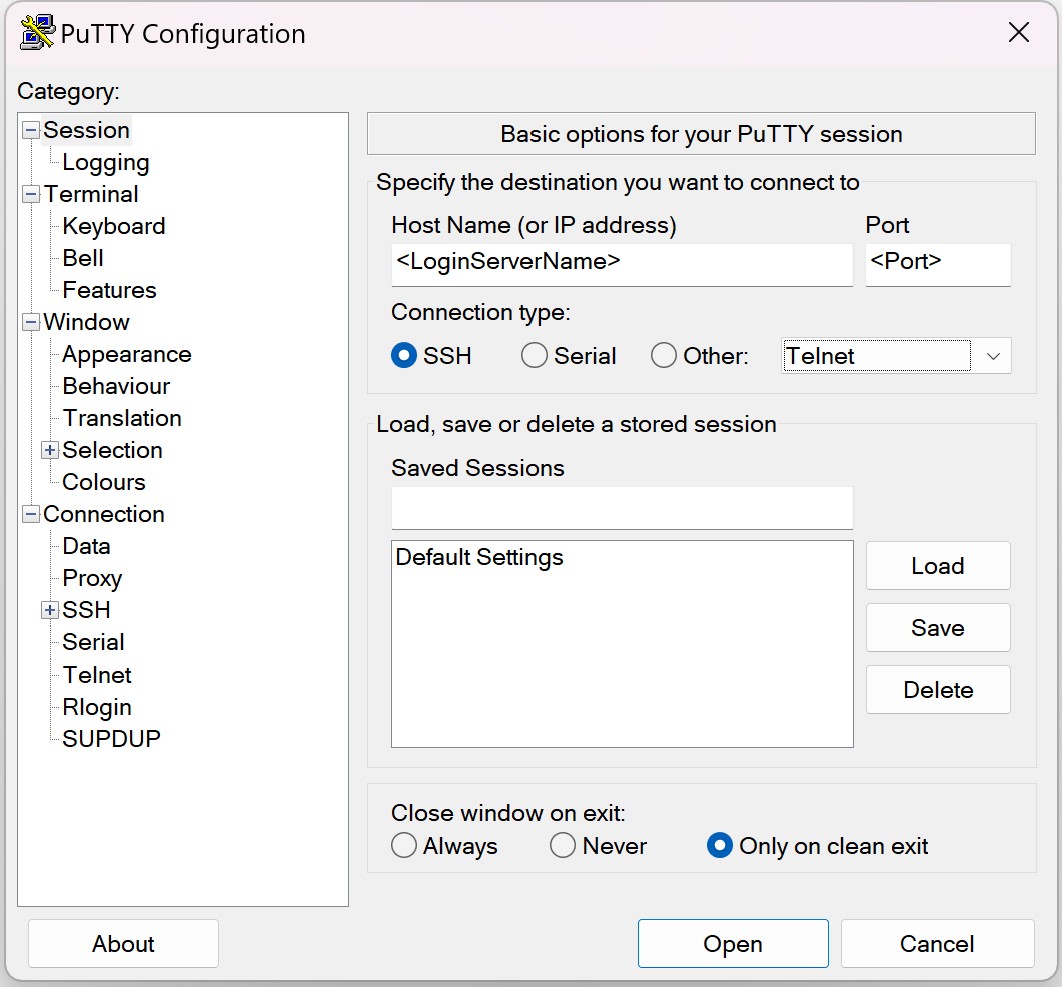
Putty Configurationdialog, clickSession - On the right panel, enter
tem-ui-al9.sdfarm.krortem-cs-al9.sdfarm.krasHost Name. - Also, enter a designated
Portnumber. - Move to
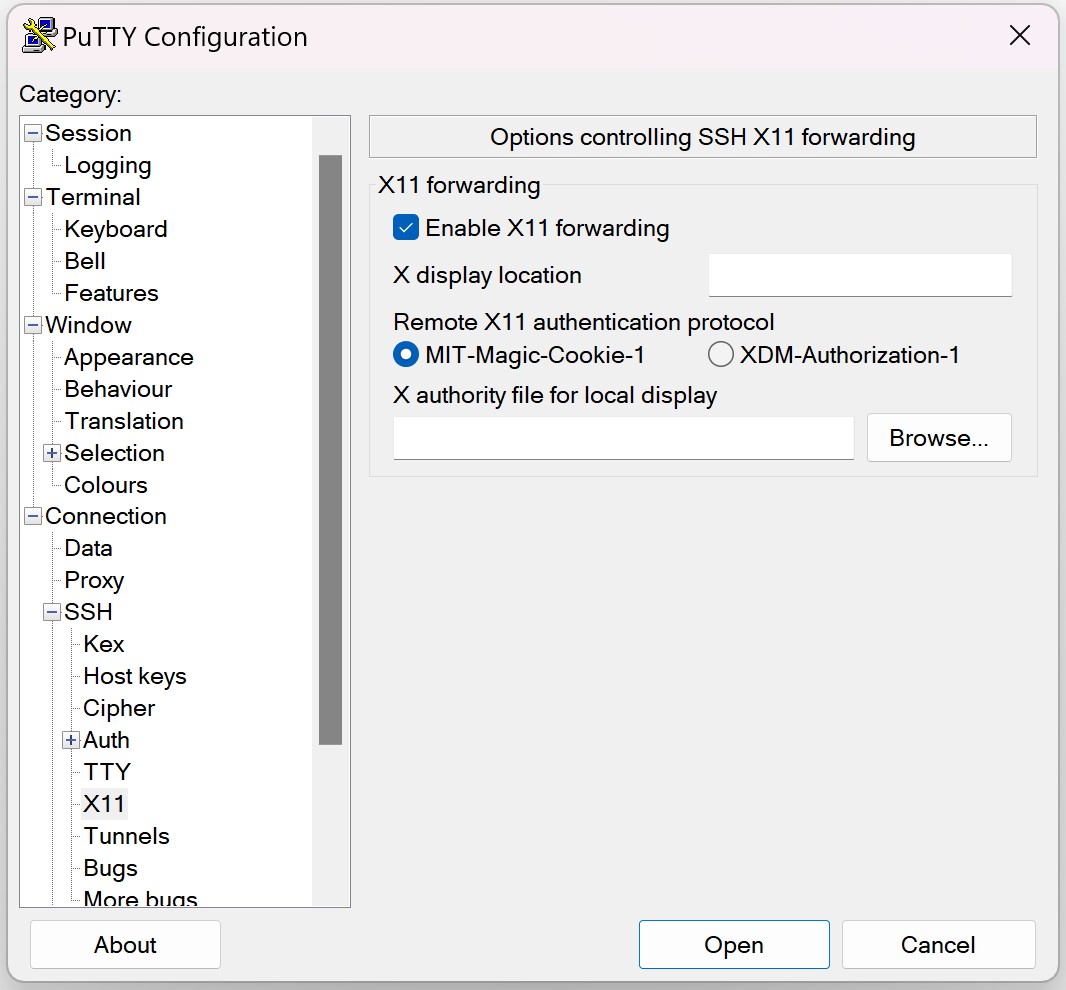
Connection->SSH->Auth->X11and confirm to checkEnable X11 forwarding - Move to
Session, optionally save the profile with the given session name and clickOpento connect the login servers.